How to use your digital business card
Your card is a web page with your details. People open it on any phone, with no app and no sign-in, and save you to their contacts in one tap.
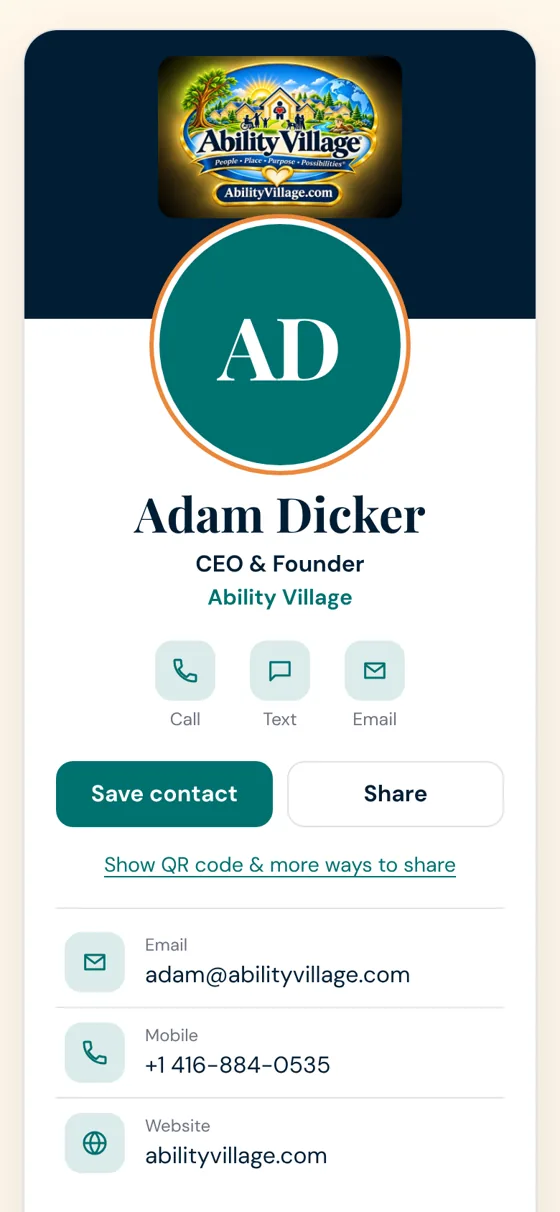
Example card
What links and codes to give out
| Link or code | Example | Give it to | OK to share publicly? |
|---|---|---|---|
| Your card link | digitalbusinesscards.ai/your-name | Anyone you meet: put it in emails, texts, social bios, your website. | ✓ Yes |
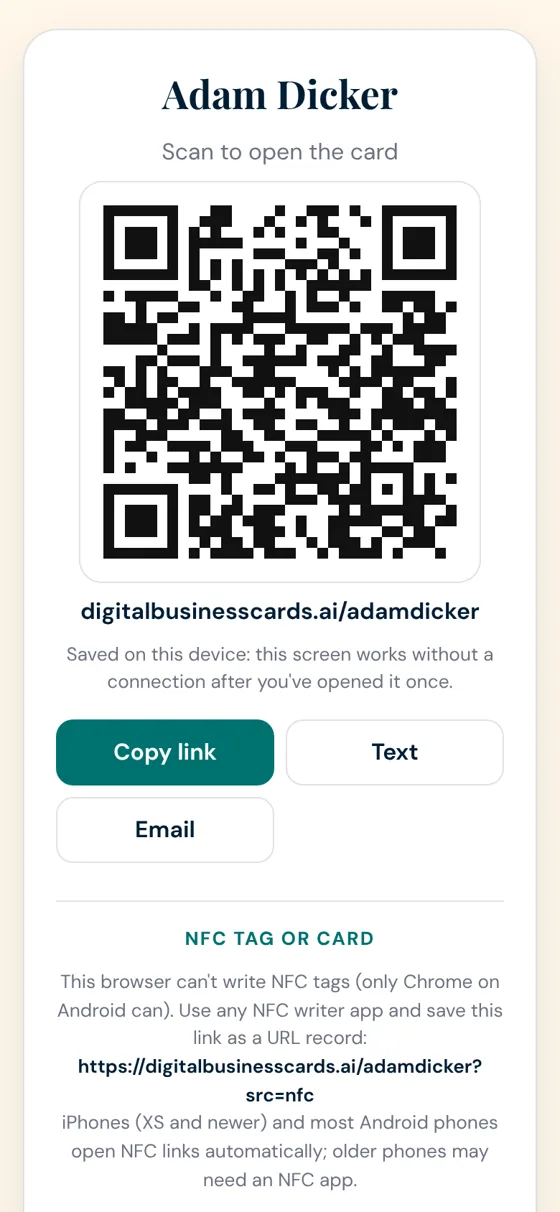
| Your QR code | Download from your dashboard or the card's Share screen | Anyone in person: show it on your phone, print it on name badges, flyers, signs and paper cards. | ✓ Yes |
| Event QR / link | digitalbusinesscards.ai/your-name?event=Spring%20Expo | People at a specific event, so you can see which contacts came from it. | ✓ Yes |
| NFC link | digitalbusinesscards.ai/your-name?src=nfc | Written onto an NFC card or sticker; people tap it with their phone. | ✓ Yes |
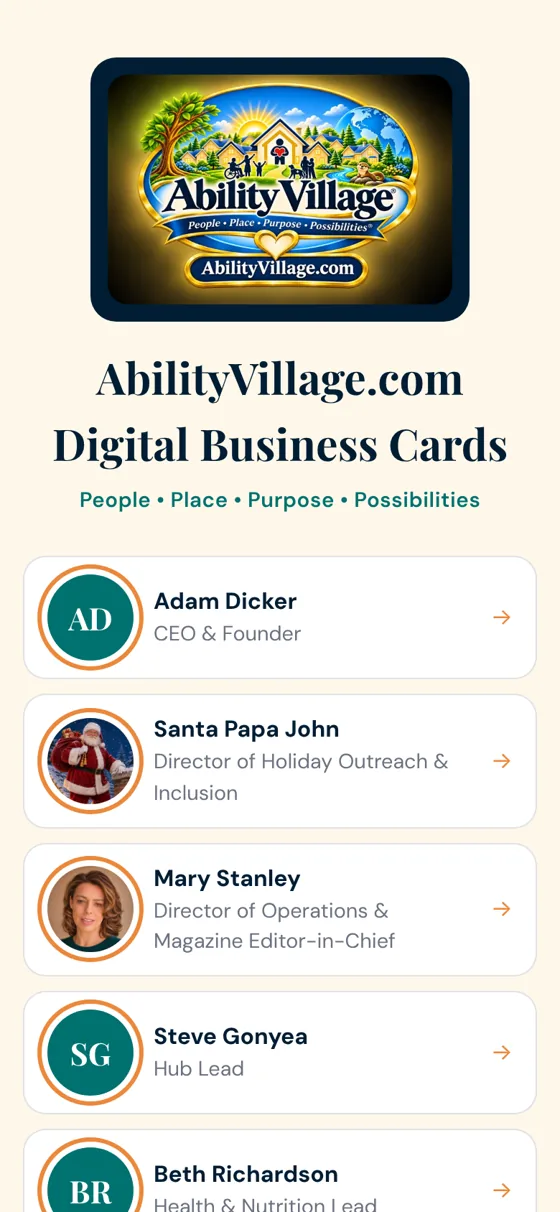
| Company team page | digitalbusinesscards.ai/your-company | Anyone who wants to find someone on your team. | ✓ Yes |
| Email signature | Generated in your card's Share tab | Paste into Gmail/Outlook so every email links to your card. | ✓ Yes |
| Claim link | digitalbusinesscards.ai/admin/join?code=… (from an admin) | Only the person whose card it is. It works once. | ✗ Private |
| Team invite link | digitalbusinesscards.ai/admin/join?code=… (from Team page) | Only staff who should join your company account. | ✗ Private |
| Sign-in page | digitalbusinesscards.ai/admin/login | Your team, to edit their cards. It's safe to share, but only works with a password. | Team only |
For example, Adam gives out digitalbusinesscards.ai/adamdicker and the QR code on his share screen. At an expo he'd use an event QR such as digitalbusinesscards.ai/adamdicker?event=Spring%20Expo, so contacts from that day are tagged “Spring Expo”.
Your QR code always opens your card link, so if you change your details the QR code doesn't need reprinting. Only changing your card's link (in Privacy) breaks printed codes.
Getting started
- Open your claim link (emailed to you, or sent by your admin). It shows the card that's waiting for you.
- Create a password: enter your name, email and a password, then tap Claim my card. Already have an account? Tap Sign in instead.
- You land in your dashboard. Next time, sign in at
digitalbusinesscards.ai/admin/login(also linked at the bottom of every card).
Starting your own business account instead? Use Get started. One login can manage several businesses; switch between them under Businesses.
Editing your card
Go to My cards and open your card. The preview on the right shows exactly what people will see. Tap Save changes when you're done; changes are live immediately.
- Profile: name, title, bio, photo (or a logo/badge), header image.
- Contact: email, mobile (adds Call and Text buttons), office phone, WhatsApp, website, booking link, location, and an optional main button.
- Links & media: websites, YouTube/Vimeo videos (play on the card), PDF brochures, portfolio and product links, social profiles, and a focus list.
- Contact form: let visitors send you their details, with your own questions and a thank-you message.
- Style: colours, font and buttons (company colours by default). It warns you if text would be hard to read.
- Privacy: public, unlisted (link only) or private, and which fields to show.
- Share: QR codes, event links, NFC link and your email signature.
Some company details (like the company name) may be set by your admin and can't be changed on your card.
When people share their details back
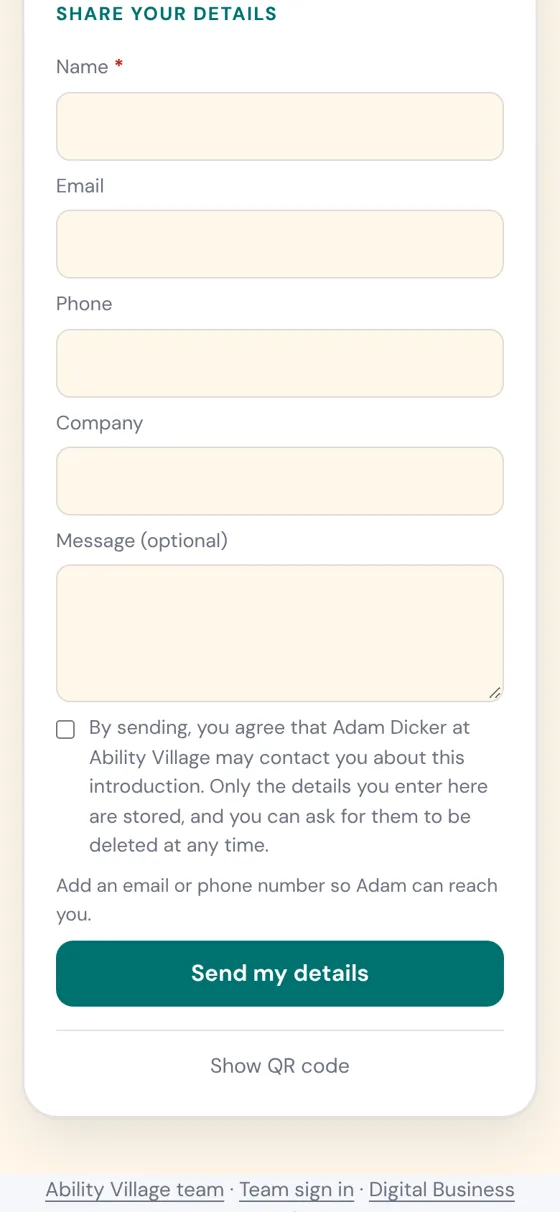
If your contact form is on, people can send you their name and number from your card. They see a consent message and must tick the box first. You'll find them under Contacts, where you can add notes and tags, set a follow-up status and reminder, save them to your phone, or export everything to a spreadsheet (CSV). If the same person sends their details twice, the two are merged into one contact.
Analytics shows views, how people arrived (QR, NFC, link), taps on your buttons, and contact downloads. A “download” means someone tapped Save contact; we can't see whether they kept it.
For admins
- Hand out cards: on Cards, each unclaimed card has Copy claim link and Email buttons, or use Email claim links to all unclaimed. Each link works once and makes that person the card's owner.
- Invite staff without a card yet: Team → New member link. They join and create their own card. Revoke links you no longer need.
- Assign or transfer a card to an existing member: open the card → Privacy → Owner.
- Roles: members see and edit only their own cards and contacts. Admins manage every card, contact, invite and the company settings. Owners can also promote admins.
- Company: logo, colours, font, team page headline, locked company fields, card templates, the sender address for claim emails, and a webhook to send new contacts to your CRM.
- Deactivate a card (Privacy → untick Active) when someone leaves. Its link stops working and their contacts stay with the company.
Privacy
Only what you put on your card is public, and you can hide any field. Contacts people send you are visible only to you and your company admins. You can download all your data or delete your account under Account.